
The Clean Way to Add llms.txt to Your Shopify Store
The New Game: AEO and GEO
The way people find information online is shifting fast. Search engines are no longer the only gatekeepers: AI assistants, LLM-powered chatbots, and generative search interfaces are increasingly becoming the first point of contact between a user and your brand.
This has given rise to two emerging disciplines: AEO (Answer Engine Optimization) and GEO (Generative Engine Optimization). Both are still in their infancy. There are no established playbooks, no guaranteed tactics, and the landscape is evolving almost weekly. But that’s precisely the point: the brands and developers who start experimenting now are the ones who will have a structural advantage when these practices mature.
One of the earliest and most concrete signals in this space is the llms.txt file: a simple, human-readable document that tells AI crawlers and language models what your site is about, what content is available, and how it should be interpreted. Think of it as a robots.txt for the AI era, but with more context and intent baked in.
Implementing it today won’t guarantee you’ll rank in AI-powered search and assistants tomorrow. But it’s low-effort, future-proof, and if the standard gains traction, potentially very valuable. When I decided to add it to my Shopify store, I quickly ran into a wall: the only solutions I could find required a third-party app or a redirect. Both felt wrong to me, or at the very least I don’t like them. So the question became: how can I do this cleanly?
Why Not Apps or Redirects?
If you search around, you’ll find quite a few Shopify apps that promise to handle llms.txt for you. I tested a few of them and every single one works the same way under the hood: they create a redirect. So instead of serving your file at https://yourstore.com/llms.txt, you end up with something like https://yourstore.com/appname/llms.txt. In my opinion, that’s not the right way to do it.
The same problem applies to manual redirects: you’re never actually serving the file at the clean, canonical URL. You’re just pointing somewhere else. For a file that’s supposed to tell AI systems what your site is about, starting with a messy or delegated URL feels like the wrong first impression.
To put it in perspective: I also manage a WordPress site, and with Yoast SEO,
llms.txtis served directly at the root. I achive directlyhttps://yourwordpressite.com/llms.txt. No redirects, no workarounds. Clean. That’s exactly what I wanted for my Shopify store.
The problem is that Shopify doesn’t give you direct access to the web server or the root directory. You can’t just drop a file there. So you need to get creative.
After some research and a few conversations with AI (fitting, given the topic), finally I found the real solution: Cloudflare.
Prerequisites
As we already discussed, Cloudflare will sit between your DNS and Shopify, so the first step is to make sure your domain points to Cloudflare.
Here’s how it works: your registrar (Seeweb, GoDaddy, or whoever manages your domain) holds your nameservers. You need to replace them with Cloudflare’s nameservers. Once that’s done, all traffic will flow through Cloudflare and your Workers will be able to intercept requests.
⚠️ Important: during this step, pay attention to your existing DNS records. Cloudflare will import them automatically, but it’s best practice to double-check, especially any records related to email (like
MX,autoconfig, orautodiscover), which should not be proxied through Cloudflare.
The Solution: A Cloudflare Worker
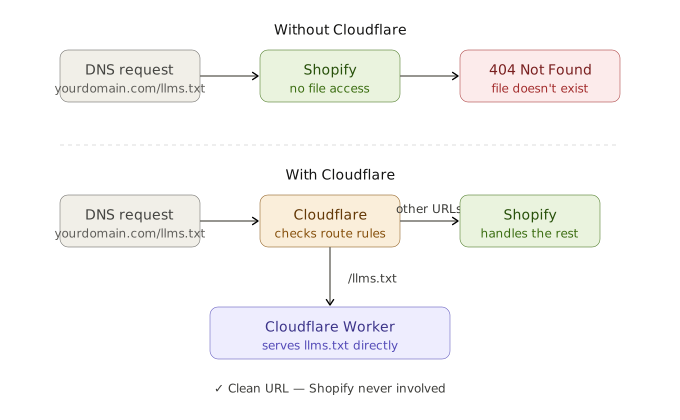
Cloudflare is a service that protects and accelerates your website by sitting in front of it. When someone or some bot visits your site, Cloudflare’s servers receive the request before it reaches Shopify. This allows Cloudflare to do useful things in the middle: block malicious bots, speed up delivery, manage security, and more.
The traffic flow looks like this:
Without Cloudflare:  DNS → Shopify
With Cloudflare:     DNS → Cloudflare → Shopify
Cloudflare Workers take this one step further. They are small scripts (written in JavaScript) that run directly on Cloudflare’s infrastructure, before the request ever reaches Shopify. You can instruct a Worker: “if someone requests /llms.txt, respond with this content directly.” Shopify never gets involved.
Applied to our problem:
Without Cloudflare:
yourdomain.com/llms.txt → Shopify → 404, file doesn't exist

With a Cloudflare Worker:
yourdomain.com/llms.txt → Worker intercepts → returns content → Shopify has no idea
This is the clean solution. The URL stays canonical, there are no redirects, no third-party apps, and zero impact on the rest of your store.
The Worker Code
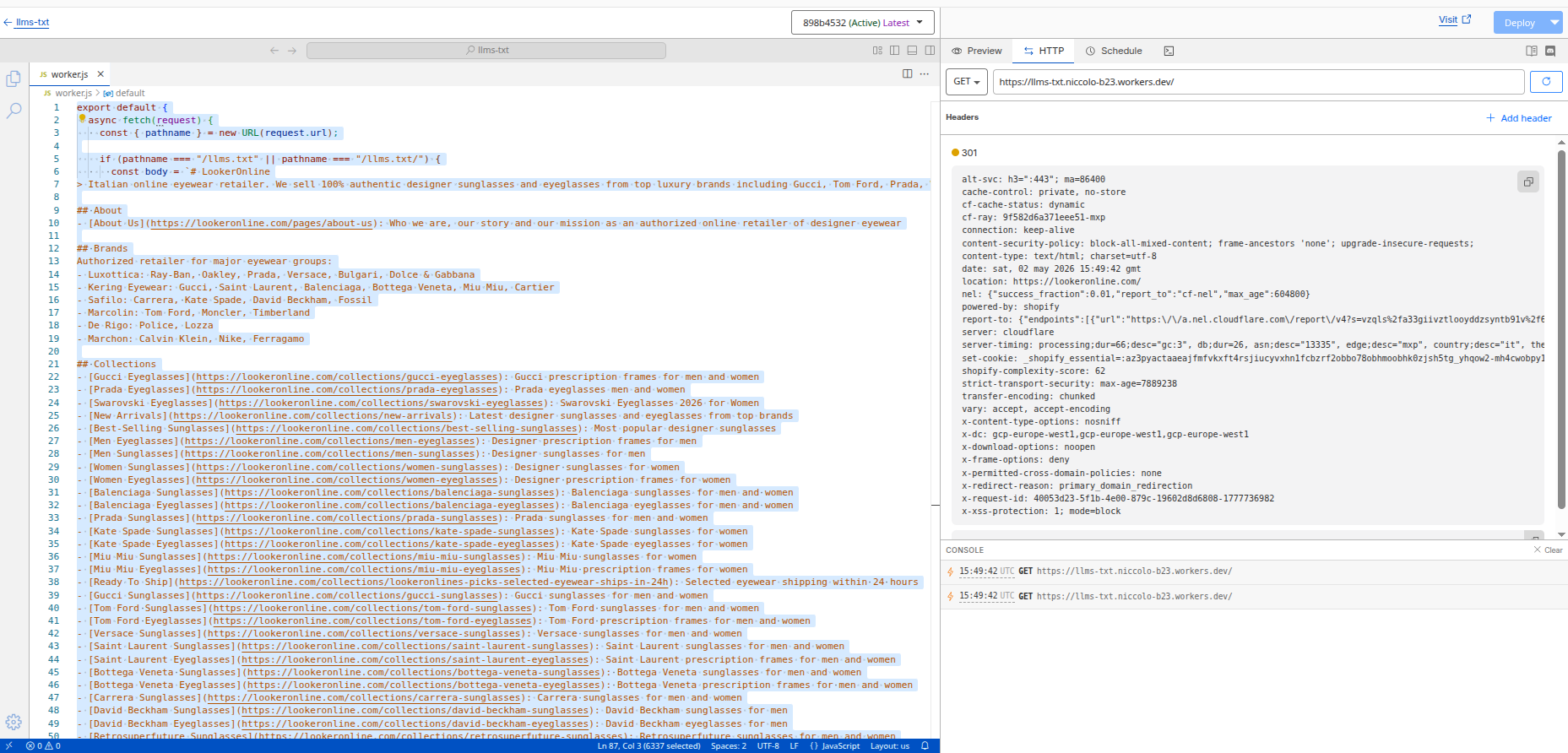
Here’s the Worker I deployed on my store. The logic is straightforward: if the request is for /llms.txt, return the file content directly. Otherwise, pass everything else through to Shopify as normal.
export default {
  async fetch(request) {
    const { pathname } = new URL(request.url);

    if (pathname === "/llms.txt" || pathname === "/llms.txt/") {
      const body = `# Your Store Name
> A short description of your store and what you sell.

## About
- [About Us](https://yourstore.com/pages/about-us): Who you are and your mission

## Collections
- [Collection Name](https://yourstore.com/collections/example): Description

## Policies
- [Privacy Policy](https://yourstore.com/policies/privacy-policy)
- [Refund Policy](https://yourstore.com/policies/refund-policy)
- [Shipping Policy](https://yourstore.com/policies/shipping-policy)

Contact: [email protected]`;

      return new Response(body, {
        status: 200,
        headers: {
          "Content-Type": "text/plain; charset=utf-8",
          "Cache-Control": "public, max-age=86400",
          "X-Served-By": "llms-worker",
        },
      });
    }

    // Pass everything else through to Shopify
    const origin = "https://yourstore.myshopify.com";
    const url = new URL(request.url);
    return fetch(origin + url.pathname + url.search, request);
  },
};
The
Cache-Control: max-age=86400header tells Cloudflare (and crawlers) to cache the file for 24 hours — no need to hit the Worker on every request.
Configure the Worker Route
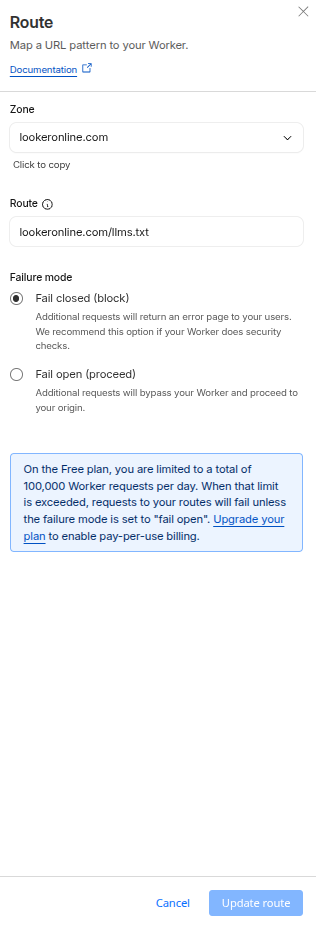
Writing the Worker is only half the job. You also need to tell Cloudflare when to trigger it, otherwise the Worker just sits there doing nothing.
In your Cloudflare dashboard, go to Workers & Pages, open your Worker, and navigate to the Settings tab. Under Triggers, add a new route:
yourstore.com/llms.txtMake sure the route is associated with the correct zone (your domain). Once saved, any request to that URL will be intercepted by the Worker before it ever reaches Shopify.
💡 Note: the route must match the bare domain, not
www.yourstore.com/llms.txt. If your canonical domain has nowww, make sure the route reflects that.
Verify if It Works
Once the Worker is deployed and the route is configured, testing is straightforward.
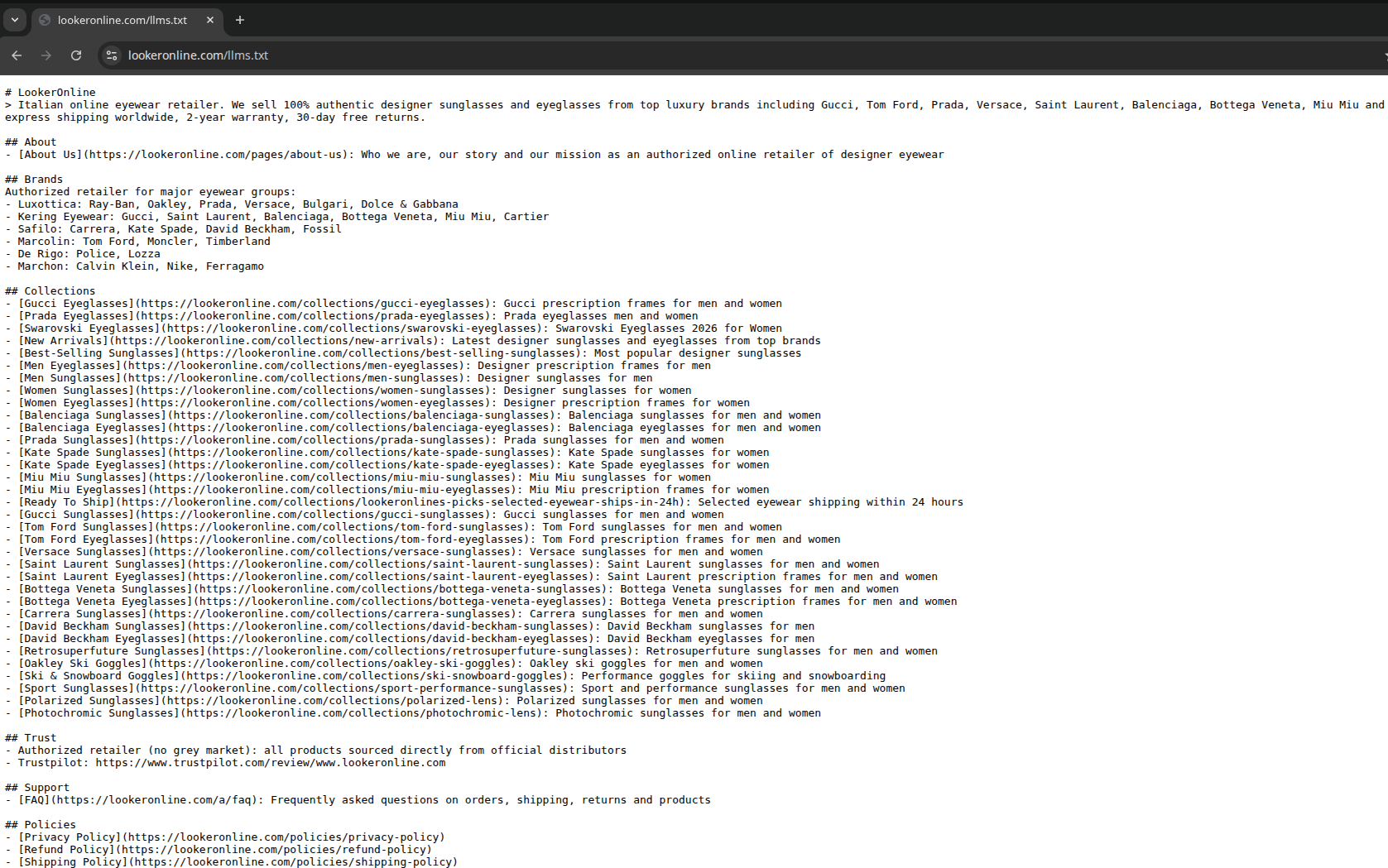
Open your browser and navigate to https://yourdomain.com/llms.txt. If everything is set up correctly, you should see the plain text content of your file served directly — no redirect, no 404, no Shopify error page.
To confirm it’s the Worker responding and not Shopify, open your browser’s developer tools (F12), go to the Network tab, reload the page, and click on the llms.txt request. In the response headers you’ll find:
X-Served-By: llms-workerThat header is the one we added in the Worker code — it’s your proof that Cloudflare intercepted the request before it reaches Shopify.
Here’s what it looks like on my store — a clean URL, plain text content, served directly:
That’s It
No apps. No redirects. No workarounds. Just a clean, canonical URL serving exactly what AI crawlers expect to find.
If you’re running a Shopify store and want to future-proof your presence in AI-powered search, this is the cleanest way to do it — and now you know exactly how.